01
Download installer
Save and run the Windows installer from this page.


Use this page to install the Word add-in on desktop Word, validate the document in the native Word environment, resolve comments, and submit the final DOCX and Word PDF for certification.
Student setup utility
Use this only when University IT or support asks for manual/centralized deployment.
Download XML manifestLive task pane: /word-addin
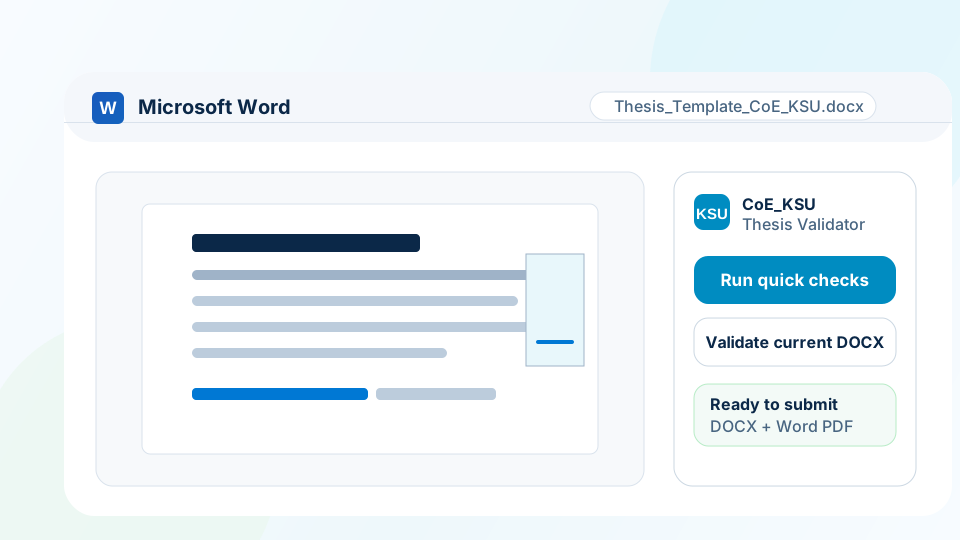
Follow the visual sequence below. The installer prepares Word for the add-in, so students do not need to search for the hidden manual upload option. It also runs preflight checks for Office, WebView2, Office.js, the live task pane, and backend access.
Save and run the Windows installer from this page.
The installer registers the CoE_KSU add-in for desktop Word.
Reopen Word, then add CoE_KSU Thesis Validator from Shared Folder.
Sign in, run checks, resolve comments, and submit after the final pass.
Recommended. Supports the installer, validator comments, PDF export, and final document upload.
Use Microsoft 365 Word. If local catalog setup is restricted, ask support for centralized deployment.
Good for reading, but final validation and certificate upload should be completed in desktop Word.
Start from the CoE/KSU skeleton in a blank document, or select the published University policy and validate an existing thesis.
Run Word-native checks, open validator comments, resolve each issue, then submit only after the final pass confirms the current DOCX and Word PDF hashes.
Use Microsoft 365 desktop Word when possible. Office 2019 may not support comments, PDF export, or final certification.
Run the installer preflight if the pane says Browser preview, Office blocked, or No template.
If the add-in does not appear, use Remove to clear only your registration and cache, restart Word, then contact IT. The fresh installer will not adopt an existing machine catalog.
If the problem continues, contact the thesis validation support team with a screenshot of the Word error.
If University IT blocks local catalog setup, use Microsoft 365 centralized deployment. The raw XML manifest remains available only for support-led pilot troubleshooting.